![EduMe_primary_full_colour_light_bg_RGB.svg]](https://help.edume.com/hubfs/EduMe_primary_full_colour_light_bg_RGB.svg)
What's covered in this article?
- Integration Benefits
- Integration outline
Integration Benefits
- ⚙️ Self-Serve Setup – Configure and connect Sharepoint directly within eduMe without requiring technical support.
- 🎨 Simplified Course Design – Use synced images in lessons, slides, and learning materials to create visually engaging content.
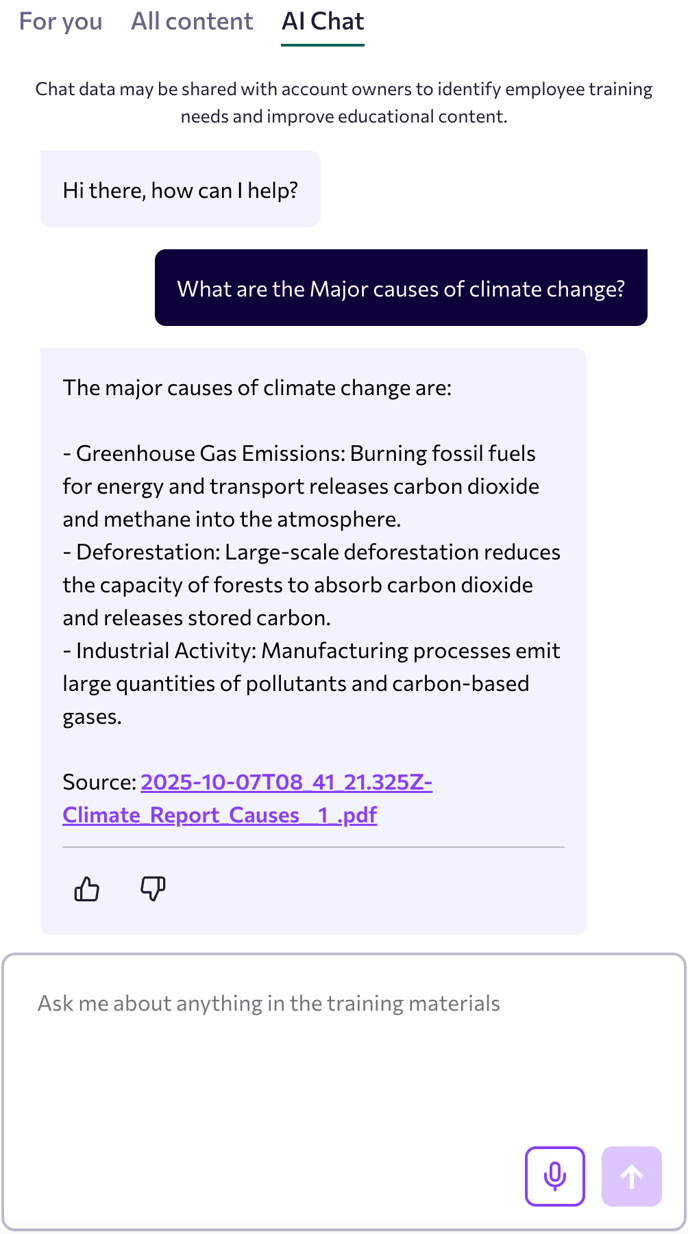
- 💬 AI-Powered Learning – Learners can interact with the AI chatbot to ask questions based on synced PDF content, transforming static documents into interactive learning experiences.
- 🔒 Secure by Design – All connections use Microsoft's secure authentication to ensure your data remains protected and access-controlled.
Integration Outline
Requirements
To enable the integration, ensure you have access to a SharePoint account with one of the following permission levels:
User account (read-only)
Admin account (read-only)
Admin account (read and write)
Additionally, confirm your SharePoint includes the images and PDFs you’d like to make available in eduMe.
Steps
Prepare Your SharePoint - Ensure your SharePoint contains the files (images and PDFs) you wish to connect to eduMe. Organise them into folders for easier selection and management.
Enable the SharePoint Integration - Use eduMe’s self-serve integration functionality within eduMe platform as follows
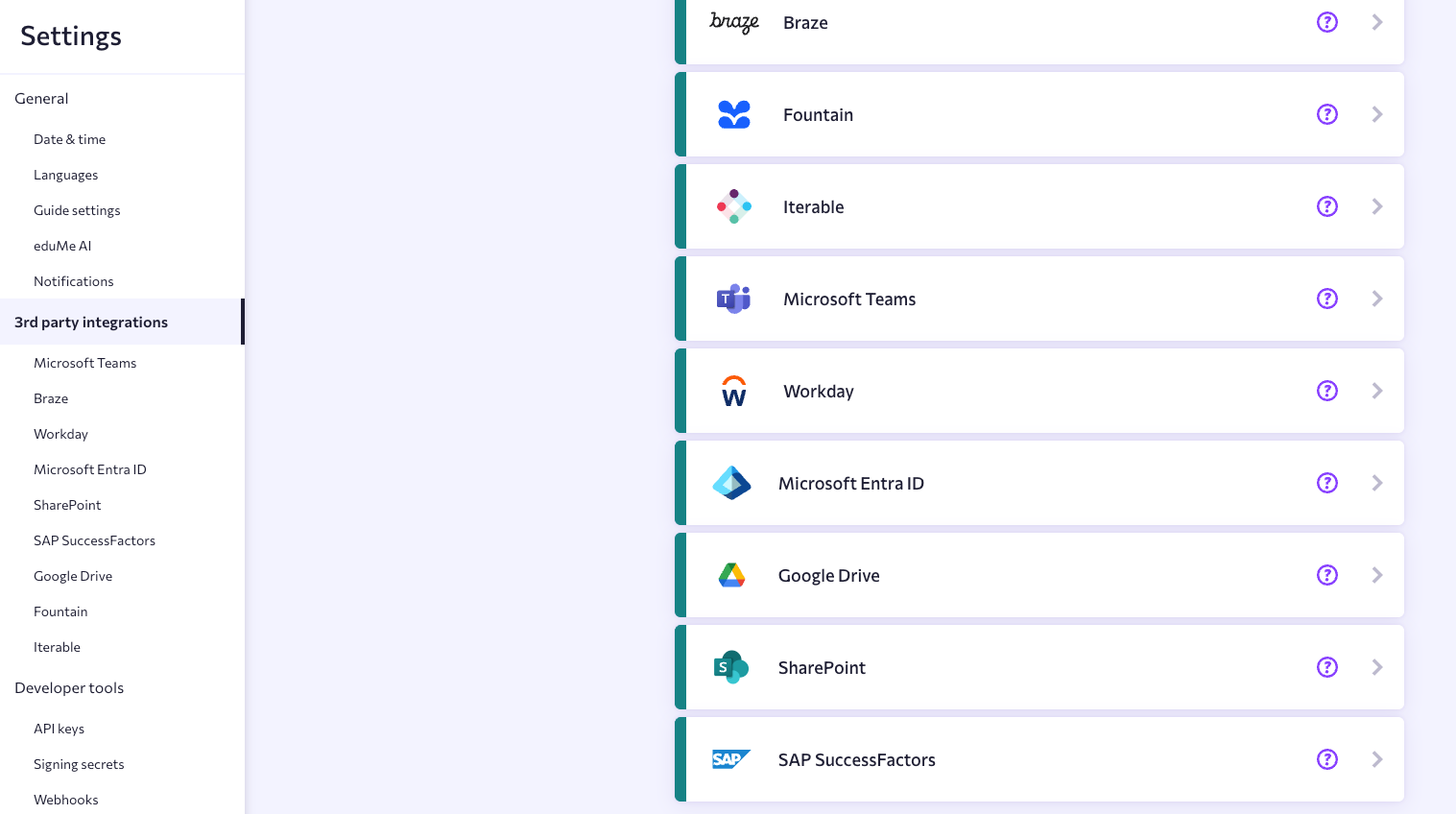
- Navigate to Settings > 3rd party integrations > select SharePoint from the list of available integrations
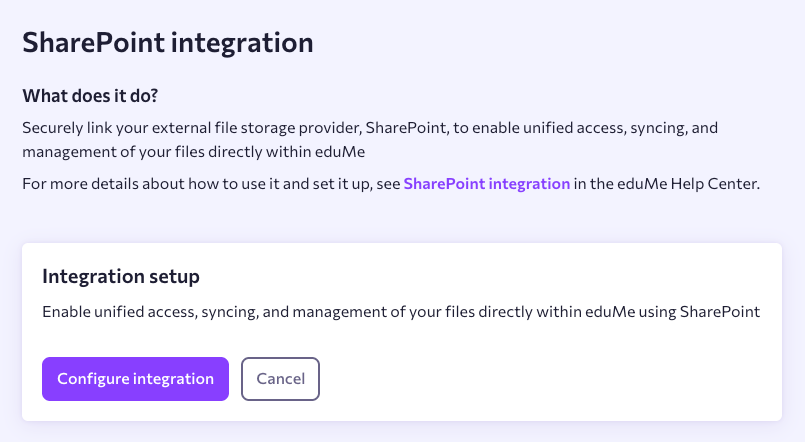
- Click Configure Integration and follow the on-screen prompts to connect your SharePoint account
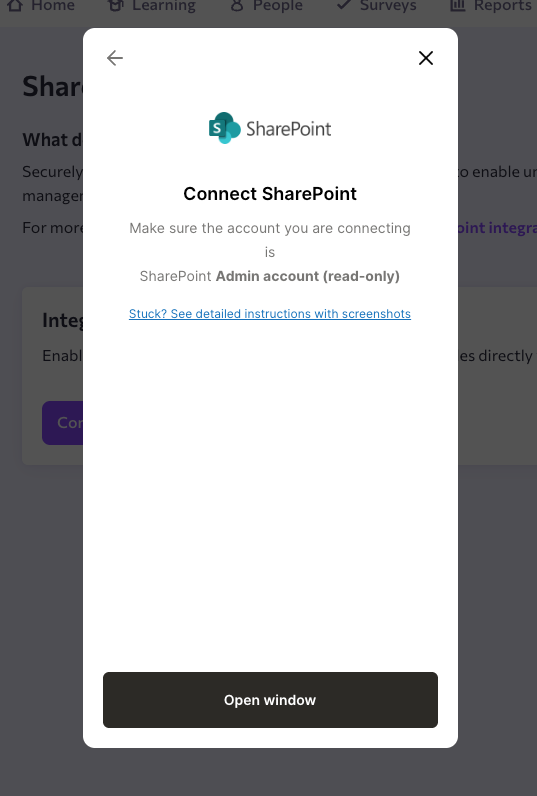
- Choose the appropriate account and grant read access to allow eduMe to sync your files securely
- The user will now be navigated back to eduMe where you can choose your files/ folders for eduMe to access and finish the integration setup.
Select and Sync Files -
- Once connected, choose the folders or files you’d like to sync and finish setup
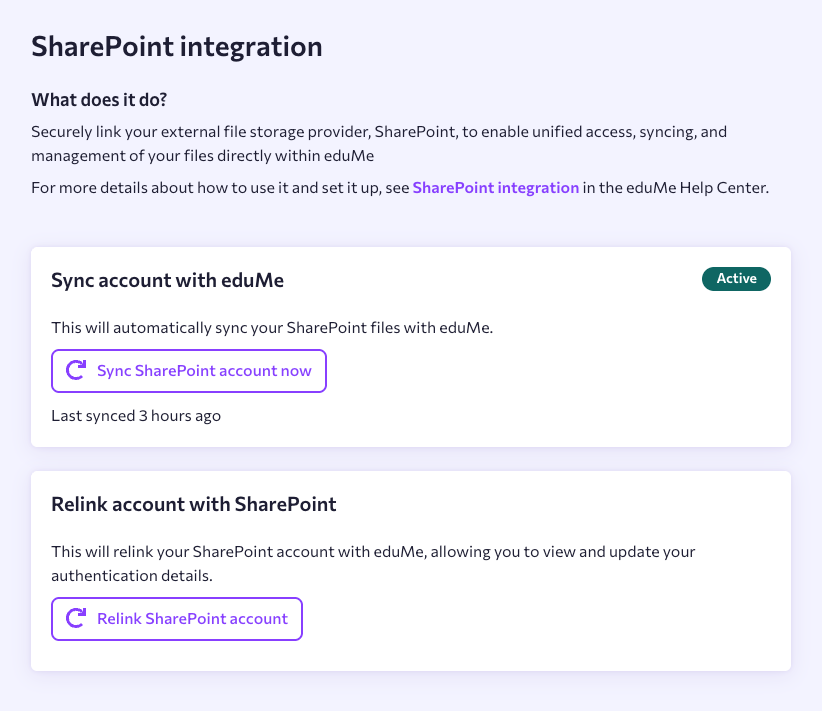
- Click Sync SharePoint Account to start syncing your selected content. The process may take a few minutes - a “Last synced” timestamp will confirm when syncing is complete.
Access Synced Content in eduMe
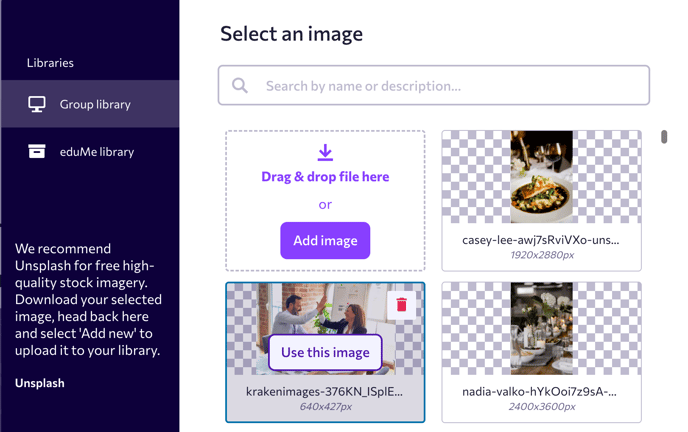
- Images – Available within the image library for use in lessons, slides, and course materials.
- PDFs – Extracted and processed content is made available through the AI chatbot, enabling learners to ask questions and receive contextual answers along with a downloadable link to the pdf.