![EduMe_primary_full_colour_light_bg_RGB.svg]](https://help.edume.com/hubfs/EduMe_primary_full_colour_light_bg_RGB.svg)
What's covered in this article?
Integration Benefits
- ⚙️ Self-Serve Setup – Configure and connect Google Drive directly within eduMe without requiring technical support.
- 🎨 Simplified Course Design – Use synced images in lessons, slides, and learning materials to create visually engaging content.
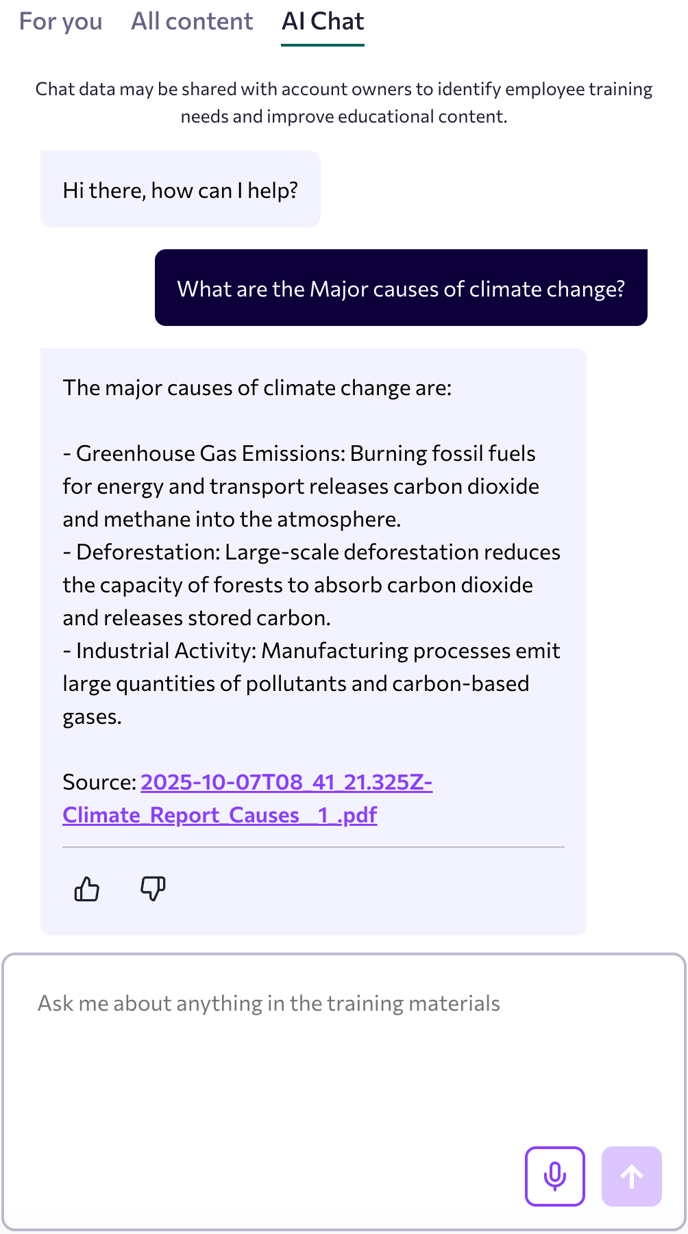
- 💬 AI-Powered Learning – Learners can interact with the AI chatbot to ask questions based on synced PDF content, transforming static documents into interactive learning experiences.
- 🔒 Secure by Design – All connections use Google’s secure authentication to ensure your data remains protected and access-controlled.
Integration Outline
Requirements
To enable the integration, ensure you have access to a Google Drive account with one of the following permission levels:
- User account (read-only)
- Admin account (read-only)
- Admin account (read and write)
Additionally, confirm your Drive includes the images and PDFs you’d like to make available in eduMe.
Steps
-
Prepare Your Google Drive - Ensure your Drive contains the files (images and PDFs) you wish to connect to eduMe. Organise them into folders for easier selection and management.
-
Enable the Google Drive Integration - Use eduMe’s self-serve integration functionality within eduMe platform as follows
-
Navigate to Settings > 3rd party integrations > select Google Drive from the list of available integrations
-
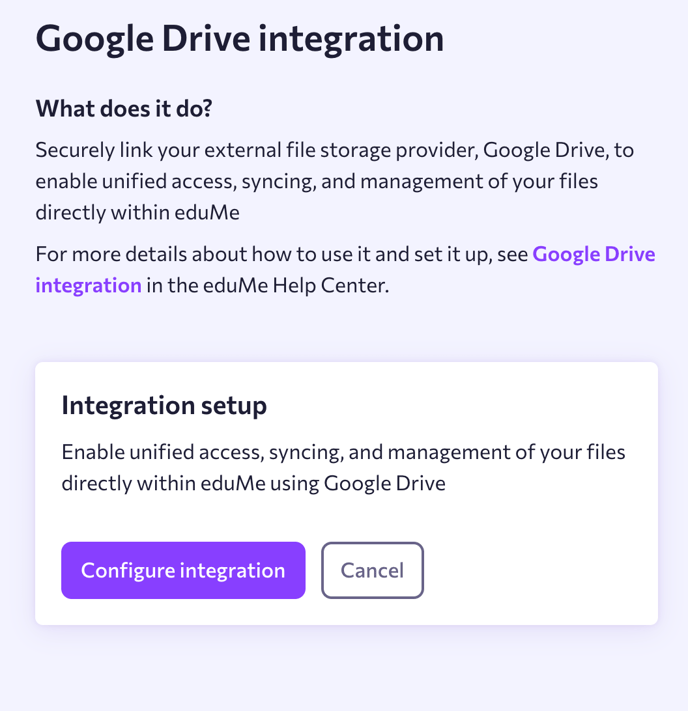
Click Configure Integration and follow the on-screen prompts to connect your Google account
-
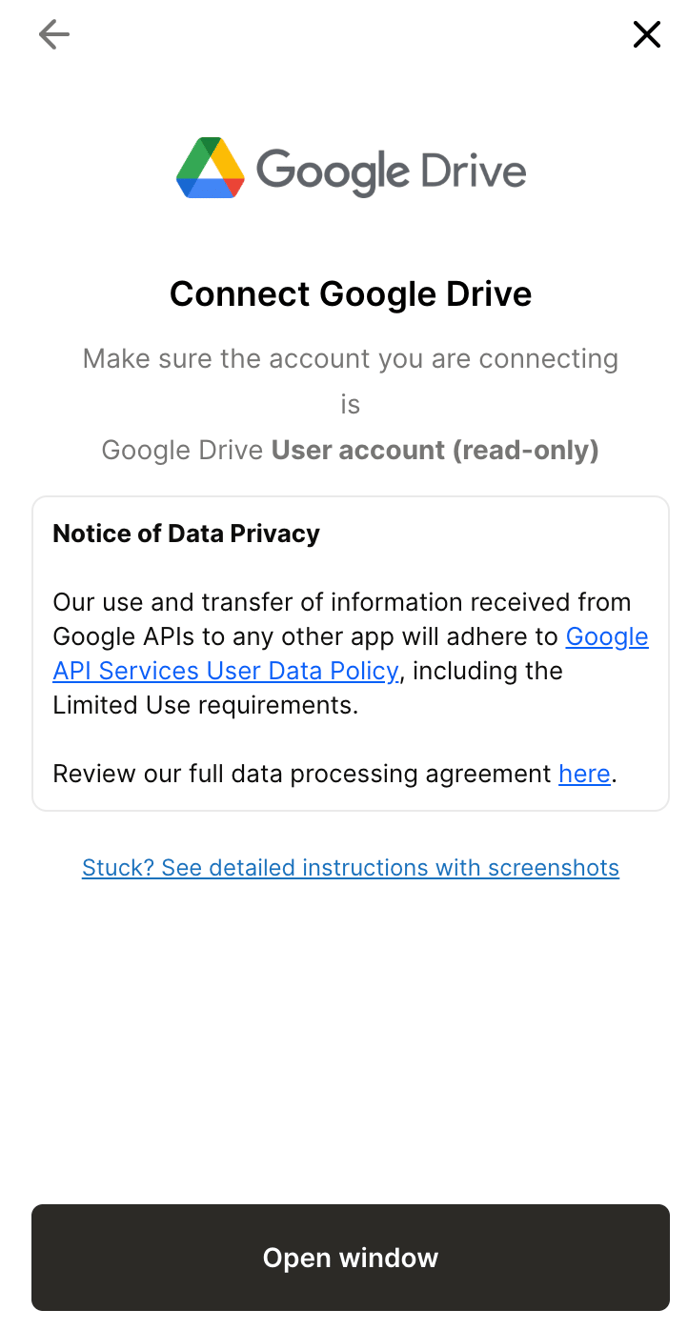
Choose the appropriate account and grant read access to allow eduMe to sync your files securely
-
The user will now be navigated back to eduMe where you can choose your files/ folders for eduMe to access and finish the integration setup.
-
-
Select and Sync Files -
- Once connected, choose the folders or files you’d like to sync and finish setup
- Click Sync Google Drive Account to start syncing your selected content. The process may take a few minutes - a “Last updated” timestamp will confirm when syncing is complete.

-
Access Synced Content in eduMe
-
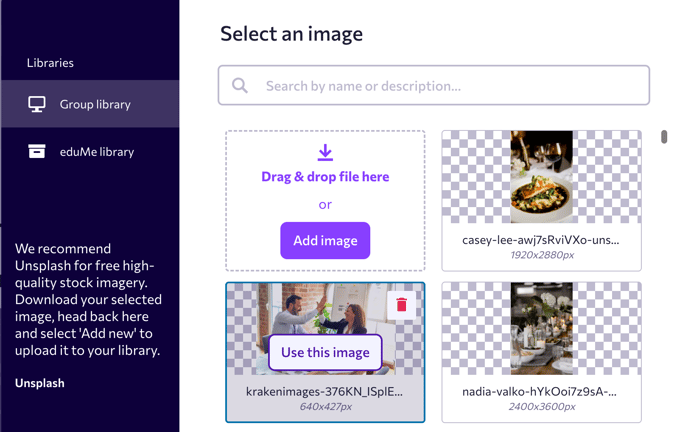
Images – Available within the image library for use in lessons, slides, and course materials.
-
PDFs – Extracted and processed content is made available through the AI chatbot, enabling learners to ask questions and receive contextual answers along with a downloadable link to the pdf.
-