![EduMe_primary_full_colour_light_bg_RGB.svg]](https://help.edume.com/hubfs/EduMe_primary_full_colour_light_bg_RGB.svg)
Choose How You Want to Display eduMe Content
The first step is deciding how you want to present eduMe content to users. There are three main options:
- Open the eduMe link in the user’s mobile browser
- Open the eduMe link from your app and allow users to return afterwards
- Display eduMe content inside an in-app webview
Each approach offers different benefits and trade-offs. The best option depends on the experience you want to create, how much control you need over the learner journey, and the level of implementation effort you are comfortable with.
Open in the Mobile Browser
Benefits
- Simple to implement by opening a URL
- A good option for demonstrating value quickly
- Uses the user’s default browser, so standard browser behaviour is preserved
Considerations
- Users leave your app to complete training
- You should define how users return to your app after completing or exiting training
- You may need to determine whether the user completed the content before returning to your app
- You may want to use a custom link on the course completion screen to guide users back to the right place
Open from Your App
Benefits
- Simple to implement by opening a URL from your app
- A good option for delivering value quickly without building a full embedded experience
- Users can return to your app using normal mobile navigation, depending on the device and app configuration
Considerations
- The experience may feel less seamless than keeping the user inside your app
- You should define the expected return journey, especially if the user exits the training before completing it
- You may need to determine whether the user has completed the content when they return
- You may want to use a custom link on the course completion screen to return users to a specific destination in your app
In-App Webview
Benefits
- Creates the most seamless user flow
- Keeps learners inside your mobile app
- Can feel more native and on-brand
- Allows eduMe content to sit naturally within an existing mobile journey, such as onboarding, task completion, compliance training, or performance support
Considerations
- Requires more development effort than simply opening a URL
- You should test the experience on both iOS and Android
- You should define how the native back button or gesture behaves
- You should consider whether the webview opens full screen or within an existing app screen
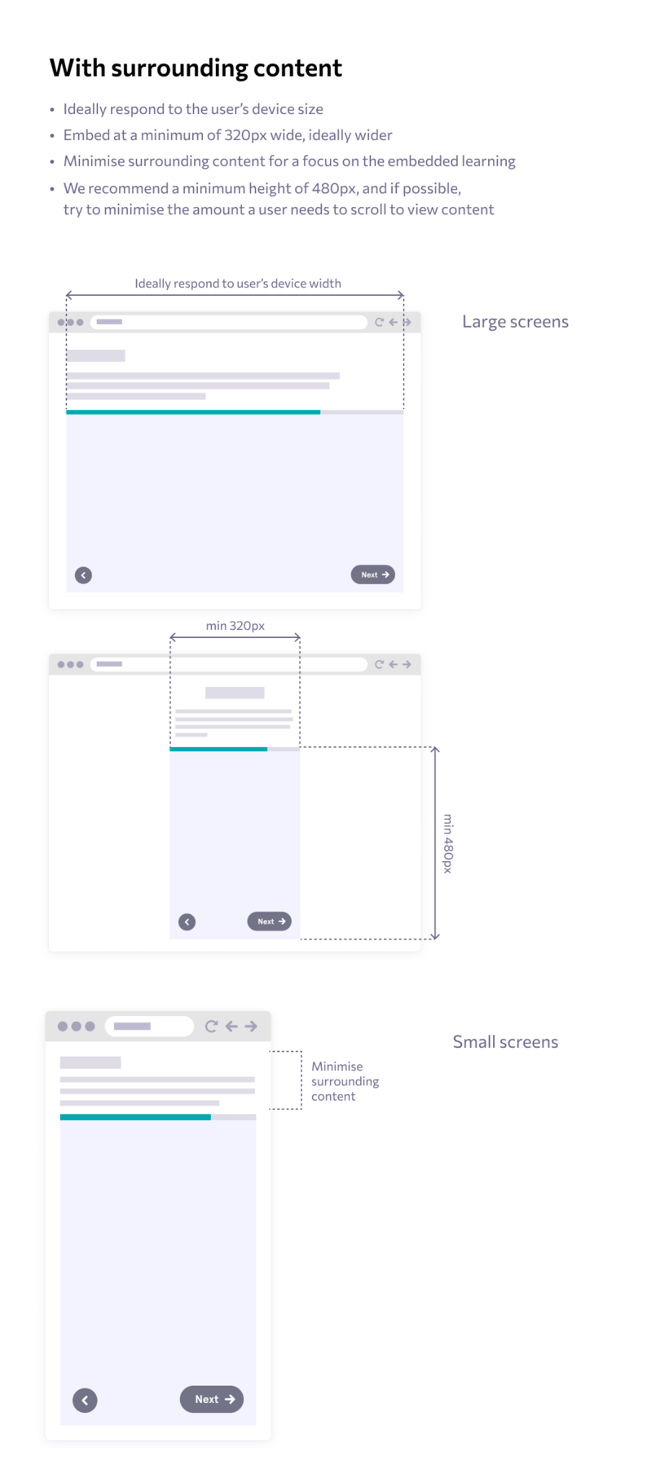
- You should minimise surrounding app UI so learners can focus on the training
- You should ensure the webview has enough space for the content to display clearly
- We recommend a minimum width of 320px
- You should avoid adding headers, footers, or navigation that reduce the usable learning area
- You should consider how users exit the training and return to the right place in your app
- You should ensure only the required webview capabilities are enabled
Recommended Webview Behaviour
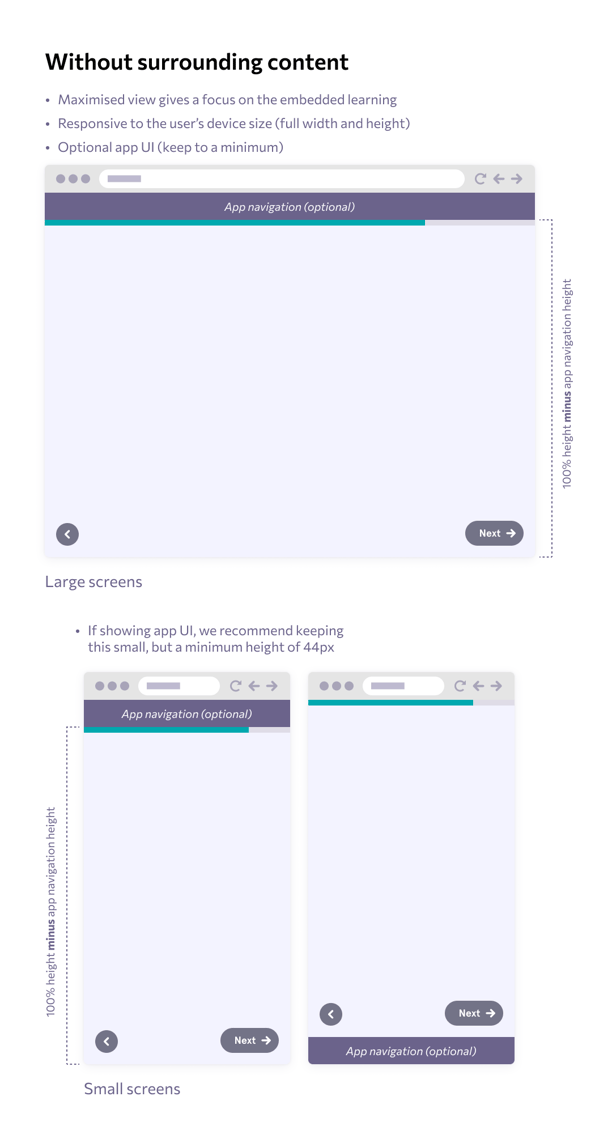
For the best learner experience, we recommend that eduMe content is displayed in a full-screen or near full-screen webview.
The webview should:
- Use the full available device width where possible
- Have a minimum width of 320px
- Minimise surrounding app content
- Avoid unnecessary native navigation elements around the learning content
- Allow users to move through the eduMe content without needing to scroll excessively
- Have a clear and predictable way to exit or go back
If you choose to include your own app header or navigation around the webview, keep this as small as possible so that it does not interfere with the learning experience.
Back Button and Exit Behaviour
Before implementing the webview, decide how users should move backwards or exit the experience.
You should define:
- Whether the mobile back button navigates within eduMe content or exits the webview
- Whether users can close the webview at any time
- Where users are taken after completing the training
- Where users are taken if they exit before completing the training
- Whether completion should trigger a return to a specific screen in your app
A clear back and exit behaviour helps avoid users becoming stuck or accidentally leaving training before completion.
Security and Technical Considerations
When using a mobile webview, your development team should make sure the webview is configured securely.
As a general principle, only enable the webview capabilities that are required for the eduMe experience. Internal mobile testing guidance also notes that JavaScript should only be enabled in webviews when explicitly required, protocol handlers should be kept to the minimum required, and webview cache, storage, and loaded resources should be cleared before the webview is destroyed where appropriate.
Your team should also consider:
- Supporting HTTPS only
- Avoiding unnecessary native bridges between the app and the webview
- Testing behaviour across iOS and Android
- Confirming that authentication, deep links, redirects, and completion links behave as expected
What This Can Look Like