![EduMe_primary_full_colour_light_bg_RGB.svg]](https://help.edume.com/hubfs/EduMe_primary_full_colour_light_bg_RGB.svg)
Watch a 1-min demo of In-Person Assessments
What's covered
• What are In-Person Assessments?
• Creating an In-Person assessment
• Known limitations and what's coming
• FAQs
🙋 What are In-Person Assessments?
In-Person Assessments (IPA) let a frontline manager or team lead observe someone performing a task live, and record a pass or fail result directly in eduMe. Unlike Quizzes and Assessments, which users complete by themselves on their own device, an IPA is filled in by the assessor while they watch the person work — there's no separate user login or self-serve step.
Common uses include:
- Skills verification or certification for frontline roles (retail, logistics, hospitality, healthcare)
- Competency check-offs and task sign-off
- Safety and compliance verification
- On-the-job onboarding checks
✋ Before you start
🤔 Not sure if IPA's are available to you? Ask your CSM if this is included in your current product package.
- Who can create one: Admins with access to the Learning section of the admin panel (admin.edume.com).
- Who can run one: Only users on Teams you've given visibility to can conduct the assessment and record outcomes (see Step 5). This is different to Courses and Guides, which are visible to everyone by default.
- Where it lives: In-Person Assessments have their own tab in Learning, separate from Courses & Guides, so they won't get mixed in with your course library.
👨💻 Creating an In-Person Assessment
Step 1: Create a new In-Person Assessment
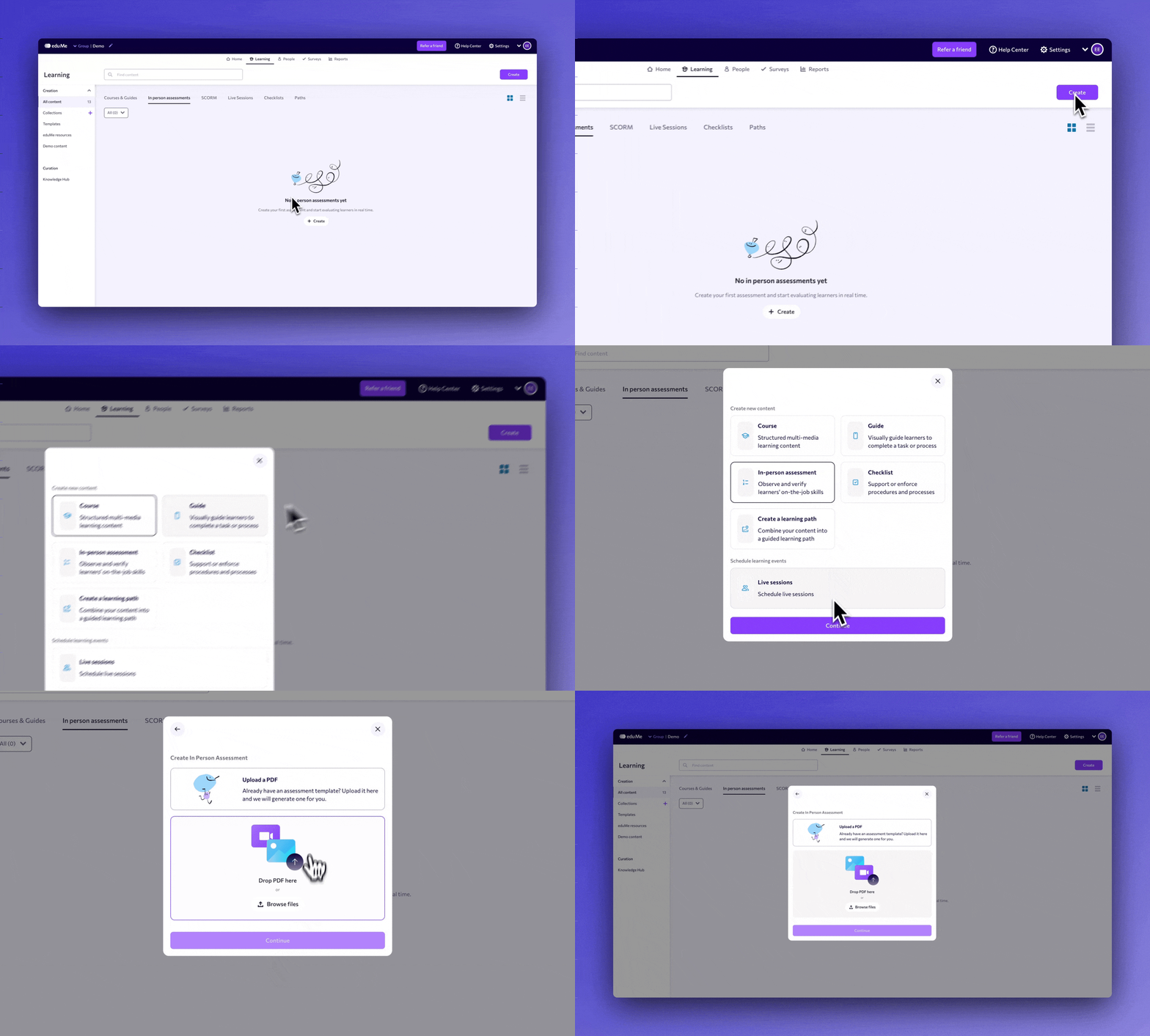
- Log in to the admin panel at admin.edume.com and go to Learning in the top navigation.
- Select the In person assessments tab.
- Click Create in the top right, then choose In-person assessment from the content type menu.
- Choose how you want to start:
- Upload a PDF — if you already have an assessment template or checklist as a PDF, upload it and eduMe will automatically generate a draft assessment from it.
- Start from scratch — skip the upload and continue with a blank assessment.
- Click Continue to open the assessment editor.
Step 2: Build the Welcome screen
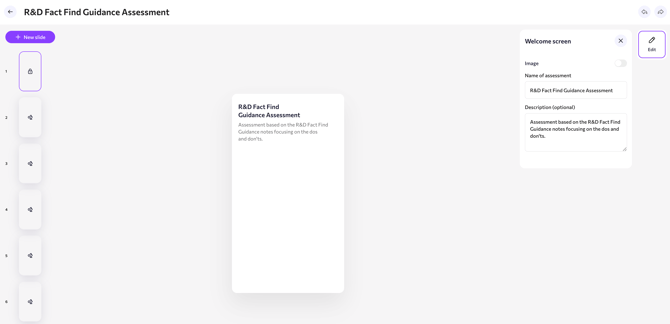
Every assessment opens with a Welcome screen, shown to the assessor before they begin. In the editor, select this slide and click Edit to set:
- Name of assessment — shown throughout the admin panel and to assessors.
- Description (optional) — brief context on what's being assessed.
- Image (optional) — toggle on to add a cover image.
Note: This slide is added automatically and can't be removed or reordered, but its content is fully editable.
Step 3: Add your assessment questions
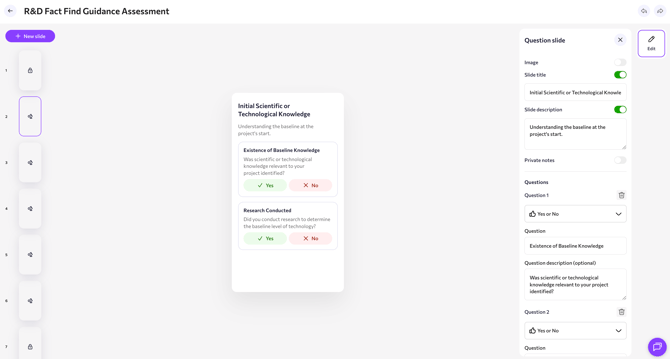
Content is organized into slides, and each slide can hold one or more questions:
- Slide title and Slide description (optional, each has its own toggle) — group related questions under a topic, e.g. “Initial Scientific or Technological Knowledge.”
- Private notes toggle — adds a notes field visible only to the assessor for that slide.
- Questions — add as many as you need to a slide. For each one, choose a question type:
- Yes or No — a single yes/no prompt, e.g. “Was the safety checklist followed?”
- Rating (1–5) — a 1–5 scale for judging quality or confidence.
- Question (required) — the prompt text, and Question description (optional) for extra context.
- Click + New slide (top left of the canvas) to add another slide and question set.
- Use the trash icon next to a question to delete it.
💡 Tip: Keep each slide focused on one skill or topic area — it keeps the flow simple for the assessor to follow while they're observing the person live.
Step 4: Review the Completion screen
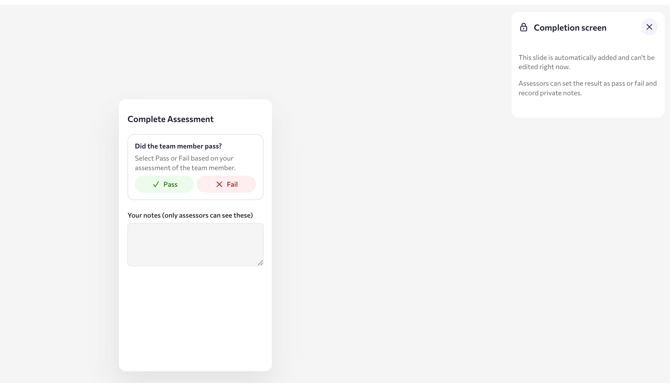
The final slide, Completion screen, is added automatically and can't be restructured. This is where the assessor finalizes the result:
- Did the team member pass? — the assessor selects Pass or Fail manually.
- Your notes — free text visible only to assessors, never to the person being assessed.
Note: There's currently no automatic scoring or percentage pass threshold — the assessor sets Pass/Fail manually based on what they've observed. See Known limitations below.
Step 5: Set visibility for your assessors
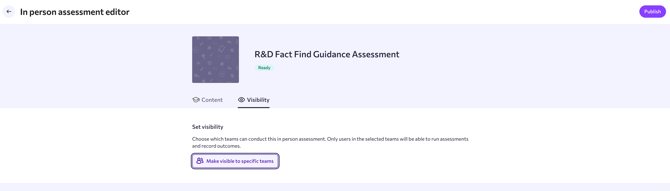
- Open the Visibility tab in the assessment editor.
- Click Make visible to specific teams.
- Select the team(s) whose members should be able to conduct this assessment and record outcomes.
Step 6: Publish your assessment
Once your content is ready, click Publish in the top right of the editor to make it available to the teams you selected.
- Ready — the assessment is published and live.
- Not ready — the assessment is still a draft and isn't visible to assessors yet.
👥 Conducting an assessment
Once it's published and visible to the right team, an assessor runs it directly against the person being assessed, in real time:
- They open the assessment from their eduMe app and go through the Welcome screen.
- They work through each question slide while observing the person perform the task, recording each answer (Yes/No or Rating) as they go.
- They add any private notes along the way.
- On the Completion screen, they set the final Pass or Fail result and add any closing notes.
Note: There's no separate user login or self-serve step — the assessor completes the whole assessment themselves while working with the person being assessed.
📝 Viewing results
In-Person Assessment results currently surface in the Performance Dashboard rather than the standard Reports tab used for Courses and Guides. There's no CSV export or question-by-question breakdown for IPA yet, unlike Quizzes and Assessments.
🙅 Known limitations and what's coming
Based on feedback since launch, a few things to keep in mind:
- Pass/fail is manual — there's no automatic percentage-based scoring yet (e.g. auto-pass at 80% correct). Some customers have asked for a configurable pass threshold per topic.
- Two question types only — Yes/No and Rating (1–5). Checklist-style, multi-select, and image-based questions have been requested but aren't available yet.
- Limited reporting — results appear in the Performance Dashboard only; there's no downloadable report or per-question breakdown yet.
- Editing after publishing — review your content on the Content tab before publishing if you expect to make frequent changes.
💡 FAQs
I can't see the “In person assessments” tab — what do I do?
This is a separate tab from Courses & Guides inside Learning. If it's missing entirely from your account, get in touch with your eduMe contact, as it may need enabling for your group.
My team can't find or run the assessment
Check the Visibility tab on the assessment and confirm their Team has been added under Make visible to specific teams.
Can assessors attach photos or videos as evidence?
Not currently supported within the assessment builder itself.
Where can I get more help?
Reach out to your CSM or the support team via support@edume.com