![EduMe_primary_full_colour_light_bg_RGB.svg]](https://help.edume.com/hubfs/EduMe_primary_full_colour_light_bg_RGB.svg)
What's covered in this article
- Creating a new Guide
- Adding and editing Guide steps
- Customising Guide content
- Previewing and saving your Guide
- Publishing your Guide
Best practice
Download our Guides best practice resource
To maximise engagement and completion rates:
- Focus on a single objective per Guide.
- Keep Guides short and easy to consume.
- Use images and videos wherever possible.
- Include interactions to reinforce learning.
- Break complex processes into clear, visual steps.
- Preview the learner experience before publishing.
Creating a new Guide
- Navigate to the Learning tab in the admin panel.
- Select Create -> Guide -> Continue.
- Select Start from scratch
- Create guide
Adding Guide steps
Guides are made up of individual steps. Each step can contain different types of content depending on your learning objective.
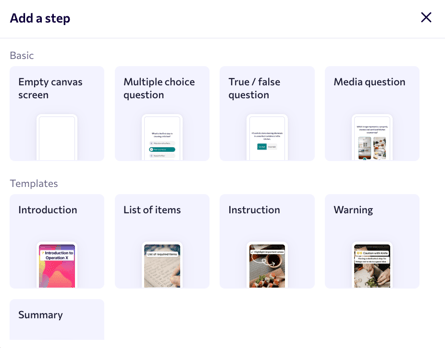
To add a new step to your guide, click on the + icon next to steps in the in the top left or from the left side panel.
Add media
To create visual learning content, you can add:
- Images
- Videos
- GIFs
Upload existing media or add new assets directly when building your Guide.
Add text
Use text to provide context, instructions, or key information.
Best practices:
- Keep text concise.
- Focus on one key message per step.
- Use clear, action-oriented language.
Add interactions
Interactive elements help increase engagement and reinforce learning.
Depending on your configuration, you can add:
- Polls
- Questions
- Knowledge checks
Use interactions strategically throughout your Guide rather than only at the end.
Use templates
If you're unsure where to start, select a template when creating a new step. Templates provide pre-built layouts that can be customised to match your content.
Customising your Guide
Each step can be customised to match your organisation's branding and content needs.
You can:
- Change background colors
- Add emojis
- Insert links
- Draw directly on images
- Rearrange content elements
Select a step to access the available editing options.
Reordering and editing steps
As you build your Guide, you can:
- Edit existing steps
- Duplicate steps
- Delete steps
- Reorder steps using drag-and-drop
Review the flow of your Guide to ensure content progresses logically from one step to the next.
Preview and save your Guide
Before publishing, click Preview Guide to see the learner experience.
Use preview mode to check:
- Content accuracy
- Image and video quality
- Text formatting
- Interactive elements
- Overall flow and pacing
Make any necessary changes before proceeding.
When you're satisfied with the content click Save Guide
Publish your Guide
When the Guide is ready to be published, ensure you have correctly set the guides visibility. Once this has been set click on Publish guide and your users will now be able to view your guide!
To deliver the individual guide directly to users, read our article on content delivery to set this up.